How to Setup IPTV Directly on Your Smart TV – LG WebOS & Samsung Tizen
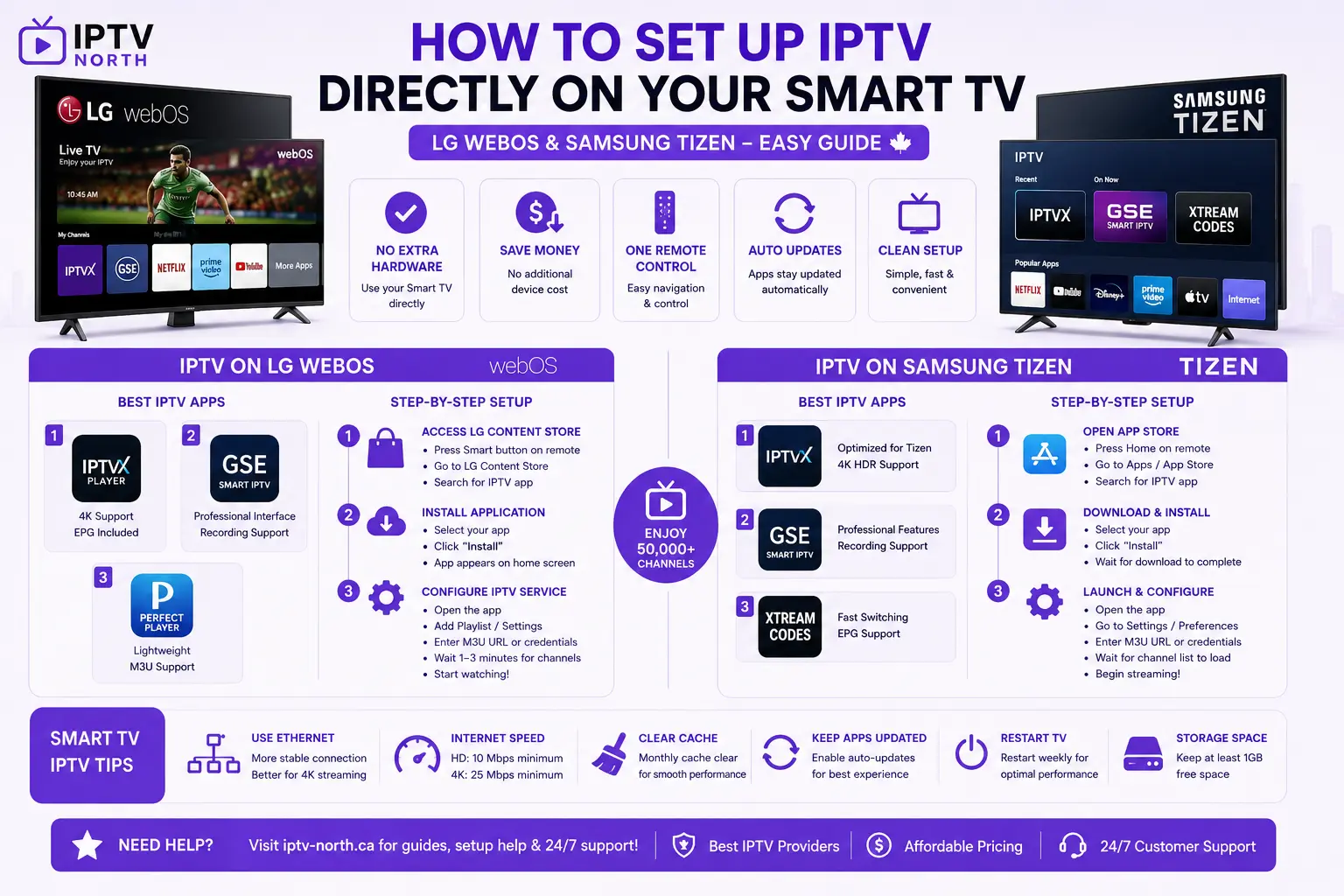
Direct setup instructions for built-in operating frameworks including LG WebOS and Samsung Tizen panels allow you to stream IPTV without additional devices like Fire TV or Roku.
This is the most convenient option if your TV supports IPTV apps natively.
Advantages of Built-In Smart TV IPTV
Pros:
- No additional hardware needed
- No extra expense
- Direct TV remote control
- Automatic app updates
- Cleaner setup
Cons:
- Limited to compatible TV brands
- Fewer app options
- Less flexibility than external devices
- Older TVs may not support IPTV
IPTV on LG WebOS TVs
Compatible Models
- LG WebOS 3.0 and newer (2016+)
- Most LG Smart TVs manufactured after 2016
Best IPTV Apps for LG WebOS
- IPTVX Player
- Download from LG App Store
- 4K support
- EPG included
- GSE Smart IPTV
- Available on LG App Store
- Professional interface
- Recording capabilities
- Perfect Player
- Lightweight option
- Free to use
- M3U playlist support
Step-by-Step LG WebOS Setup
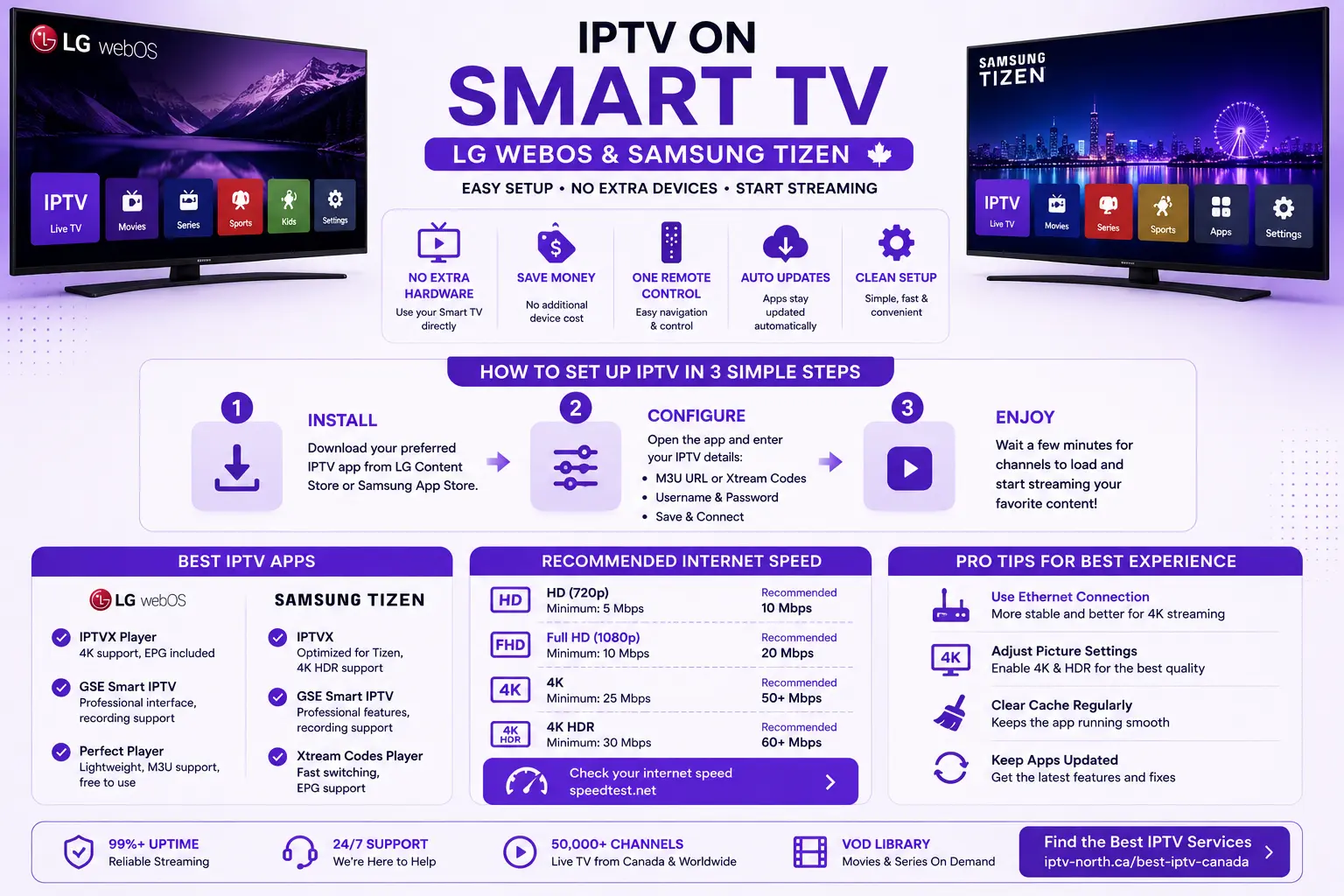
Step 1: Access LG Content Store
- Press the Smart button on your LG remote
- Navigate to LG Content Store
- Search for desired IPTV app
Step 2: Install Application
- Select app from results
- Click “Install”
- Wait for installation to complete
- App will appear on your home screen
Step 3: Configure Your IPTV Service
- Open the installed app
- Select “Add Playlist” or “Settings”
- Enter your IPTV credentials:
- M3U URL or Username/Password
- Authorization details
- Wait for channels to load (typically 1-3 minutes)
- Start watching!
Troubleshooting LG WebOS IPTV:
- Common issues guide →
- Restart TV if app crashes
- Clear app cache (Settings → Apps → App Manager)
- Check internet speed: Test here →
IPTV on Samsung Tizen Smart TVs
Compatible Models
- Samsung Smart TV with Tizen OS (2015+)
- All modern Samsung TVs
Best IPTV Apps for Samsung Tizen
- IPTVX
- Available on Samsung App Store
- Optimized for Tizen
- 4K HDR support
- GSE Smart IPTV
- Professional features
- Recording support
- Multiple profiles
- Xtream Codes Player
- Fast switching
- Lightweight
- EPG support
Step-by-Step Samsung Tizen Setup
Step 1: Open Samsung Smart TV App Store
- Press Home button on remote
- Navigate to Apps
- Select “Samsung TV Plus” or “App Store”
- Search for IPTV application
Step 2: Download and Install
- Select desired IPTV app
- Click “Install”
- Wait for download completion
Step 3: Launch and Configure
- Open the installed app
- Tap “Settings” or “Preferences”
- Input your IPTV details:
- Playlist URL (M3U)
- Username and password
- Allow app to download channel list
- Begin streaming
Samsung Tizen IPTV Tips:
- Use ethernet for better stability
- Update Samsung TV firmware regularly
- Clear app cache monthly
- Adjust picture settings for 4K content
IPTV App Comparison: Smart TV Edition
| Feature | LG WebOS | Samsung Tizen | External Device |
|---|---|---|---|
| Native Support | Excellent | Excellent | N/A |
| App Selection | Good | Good | Excellent |
| 4K Streaming | Yes | Yes | Yes |
| Recording | Yes (select apps) | Yes (select apps) | Depends on device |
| Ease of Setup | Very Easy | Very Easy | Moderate |
| Cost | Free (apps only) | Free (apps only) | $25-250 |
When to Choose Smart TV IPTV vs External Device
Choose Built-In Smart TV IPTV if:
- Your TV is LG WebOS or Samsung Tizen
- You want simplest setup
- You prefer one remote control
- You have limited space
Choose External Device (Fire TV/Android) if:
- Your TV doesn’t support IPTV natively
- You want more app options
- You want better performance
- You need advanced features like recording
Optimizing Your Smart TV for IPTV Streaming
Network Setup:
- Use ethernet connection (recommended)
- More stable than WiFi
- Better for 4K streaming
- If WiFi only: Position TV near router
- Minimum speed: 10 Mbps (HD), 25 Mbps (4K)
Picture Settings for IPTV:
- Navigate to Picture Settings
- Set resolution to 4K (if supported)
- Enable HDR if available
- Adjust color temperature (warm recommended)
- Enable motion smoothing for live TV
Sound Settings:
- Set to Surround Sound if supported
- Adjust volume levels
- Enable spatial audio if available
Storage and Performance Management
Regular Maintenance:
- Clear cache monthly
- LG: Settings → Apps → App Manager → Select app → Clear Cache
- Samsung: Settings → Apps → Select app → Storage → Clear Cache
- Uninstall unused apps
- Keep apps updated
- Restart TV weekly
Monitor Storage:
- LG WebOS: Settings → Storage
- Samsung Tizen: Settings → Apps → Storage Usage
- Keep at least 1GB free space available
Internet Connection Optimization
Speed Requirements by Content Type:
| Quality | Minimum Speed | Recommended |
|---|---|---|
| HD (720p) | 5 Mbps | 10 Mbps |
| Full HD (1080p) | 10 Mbps | 20 Mbps |
| 4K | 25 Mbps | 50+ Mbps |
| 4K HDR | 30 Mbps | 60+ Mbps |
Common Smart TV IPTV Issues & Solutions
Problem: Channels won’t load
- Check internet connection
- Verify IPTV credentials
- Restart the IPTV app
- More troubleshooting →
Problem: App crashes
- Update app from store
- Clear app cache
- Restart smart TV
- Reinstall application
Problem: Buffering/Freezing
- Check internet speed
- Restart modem and TV
- Full buffering guide →
- Switch to lower quality option
Problem: No sound
- Check TV volume
- Verify app audio settings
- Test with different channel
- Check HDMI connection
Premium Features Available on Smart TVs
Recording (where supported):
- Set up scheduled recordings
- Pause and resume live TV
- Access recorded content anytime
Multi-user Support:
- Create separate profiles
- Personalized channel lists
- Individual settings per user
Screen Mirroring:
- Cast from phone to TV
- Wireless connection
- Second screen functionality
Best IPTV Services for Smart TVs
When choosing an IPTV service for your Smart TV, verify:
- ✓ Compatible with your TV’s operating system
- ✓ Apps available on LG/Samsung App Store
- ✓ 50,000+ channels minimum
- ✓ 4K support
- ✓ Reliable 99%+ uptime
Smart TV IPTV FAQs
Q: Do I need to pay for IPTV apps on Smart TV?
A: Most are free, though some offer premium features. See pricing →
Q: Can I use older TV models with IPTV?
A: Only if they have built-in Smart TV features and support apps.
Q: Is it safe to install IPTV apps on my Smart TV?
A: Yes, if using official app stores. More security info →
Q: Can I update IPTV apps automatically?
A: Yes, enable auto-update in LG/Samsung App Store settings
Q: How often should I restart my Smart TV?
A: Recommended weekly for optimal performance
Getting Started Today
- Check if your Smart TV supports IPTV apps
- LG WebOS 3.0+ or Samsung Tizen
- Choose an IPTV provider →
- Check pricing options →
- Download recommended app
- Follow setup instructions above →
- Contact support if needed →
Conclusion
Built-in IPTV on modern Smart TVs is the most convenient streaming solution. Whether you own an LG or Samsung TV, setting up IPTV directly is quick and straightforward.
Recommended next steps: