How to Setup IPTV on Fire TV Devices in Canada – Complete Guide 2026
Amazon Fire TV devices have become increasingly popular among Canadian IPTV users. Whether you own a Firestick 4K, Fire TV Cube, or Fire TV Stick Lite, these devices offer an affordable and reliable way to stream thousands of channels and on-demand content.
Fire TV devices are specifically programmed to execute flawlessly using downloader tools on Amazon Firesticks and Cube systems. Learn more about Fire TV Devices →
Why IPTV on Fire TV is Better Than Cable in Canada
Compared to traditional cable TV in Canada, IPTV offers:
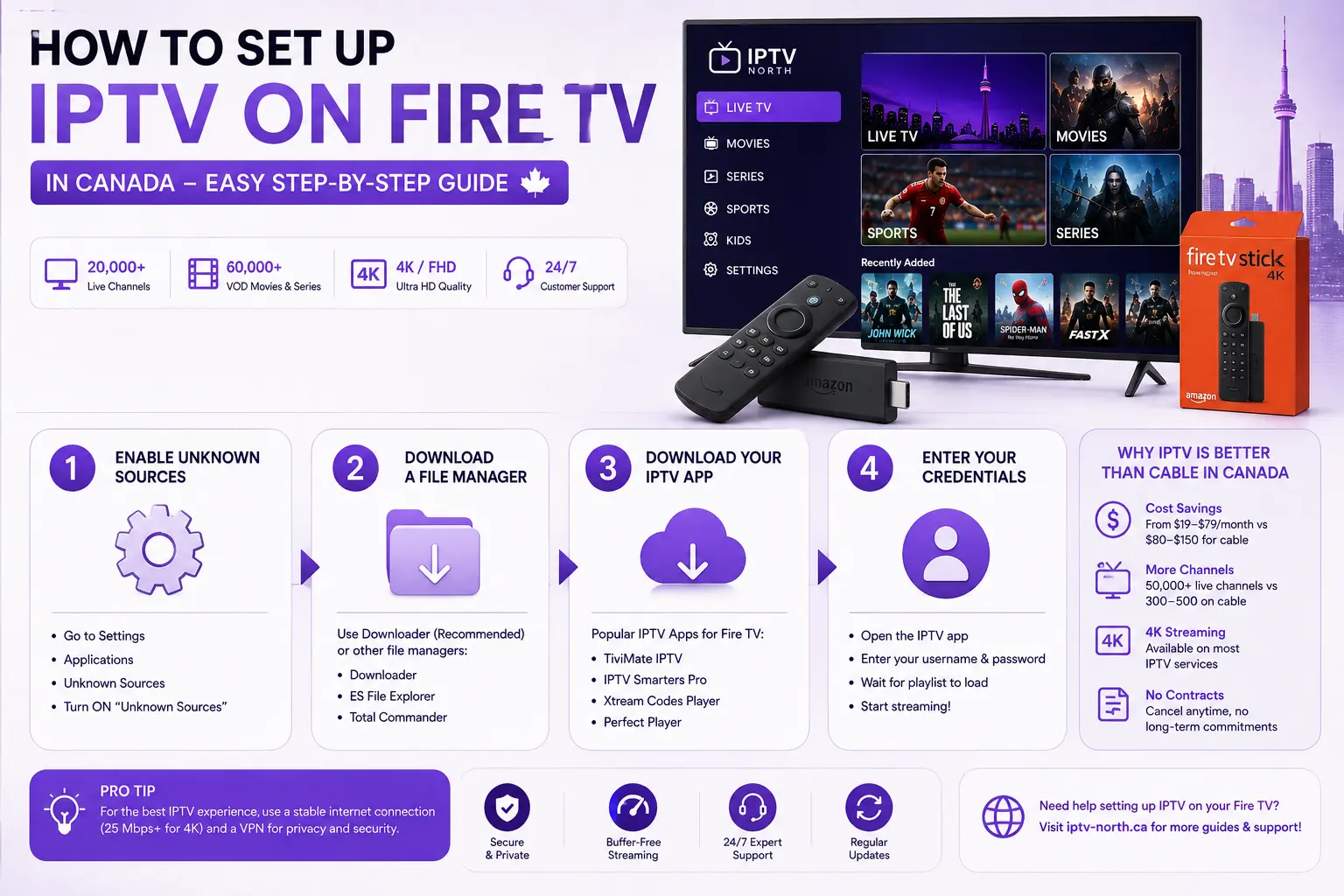
- Cost savings: From $19-$79/month vs $80-$150 for cable
- More channels: 50,000+ live TV channels vs 300-500 on cable
- 4K streaming: Available on most IPTV services
- No long-term contracts: Cancel anytime
Check our pricing comparison on the PRICING page → to see how IPTV compares to cable in your province.
Step-by-Step Guide to Install IPTV on Firestick
Step 1: Enable Installation from Unknown Sources
- Go to Settings → Applications → Unknown Sources
- Turn ON “Unknown Sources”
- Select “Allow” when prompted
Step 2: Download a File Manager
Popular file managers compatible with Fire TV:
- Downloader (most recommended)
- ES File Explorer →
- Total Commander
Step 3: Download Your IPTV Application
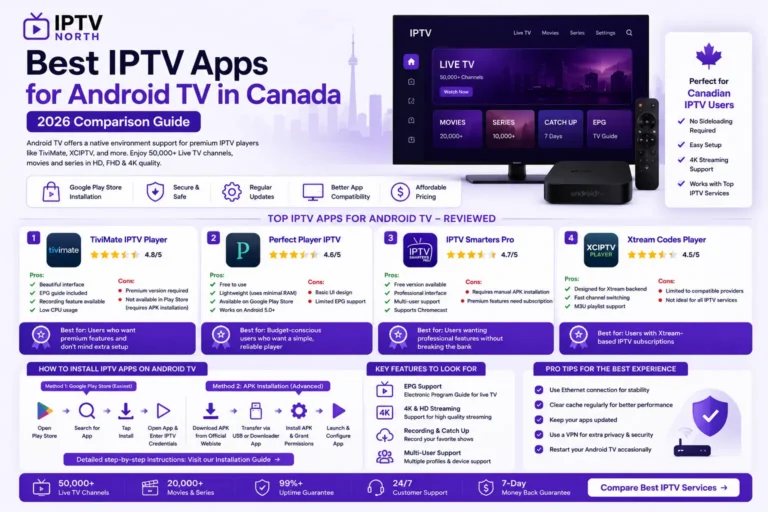
The most popular IPTV apps for Fire TV in Canada include:
- Xtream Codes Player
- TiviMate IPTV
- IPTV Smarters Pro
- Perfect Player
You can find setup instructions for each app on our installation guide page →.
Step 4: Enter Your Credentials
Once the app is installed:
- Open the IPTV application
- Input your username and password
- Wait for playlist to load (usually 30 seconds – 2 minutes)
- Start streaming!
Best IPTV Services for Fire TV in Canada
If you’re looking for the best IPTV provider for your Fire TV device, check out our complete review of best IPTV Canada services →.
We recommend:
- Premium services with 4K support
- Dedicated app compatibility with Fire TV
- 24/7 customer support
- Money-back guarantees
Troubleshooting Common Issues
Problem: Buffering while streaming?
Read our guide on how to fix IPTV buffering →
Problem: App keeps crashing?
- Restart your Fire TV device
- Clear app cache (Settings → Applications → Manage Installed Applications)
- Reinstall the IPTV app
Problem: Poor picture quality?
Your internet speed should be:
- Minimum 10 Mbps for HD streaming
- 25 Mbps for 4K streaming
- Check your internet speed here →
Fire TV vs Other Devices
| Device | Price | 4K Support | IPTV Friendly |
|---|---|---|---|
| Fire TV Stick 4K | $35-45 | Yes | Excellent |
| Fire TV Cube | $120 | Yes | Excellent |
| Fire TV Stick Lite | $25-35 | No | Good |
| Roku | $50-80 | Yes | Good |
| Apple TV | $180+ | Yes | Fair |
For complete device comparison, visit our installation guide page →.
Setting Up IPTV Remote Control
Fire TV remotes work great with IPTV apps. Pro tips:
- Use voice commands: “Alexa, open [app name]”
- Customize your remote buttons in Settings
- Use the keyboard remote for typing credentials
Monthly Maintenance Tips
To keep your Fire TV running smoothly with IPTV:
- Update apps regularly – Check Amazon App Store weekly
- Clear cache monthly – Settings → Applications → Storage Management
- Restart device – Unplug for 30 seconds, plug back in
- Monitor storage – Fire TV needs 2GB free space minimum
FAQs About IPTV on Fire TV
Q: Is IPTV legal in Canada on Fire TV?
A: Visit our FAQs page → for detailed information about IPTV legality in Canada.
Q: Can I watch live sports on Fire TV with IPTV?
A: Yes! Most IPTV services include sports channels. See our IPTV canada page → for sports-focused providers.
Q: How fast is internet needed for 4K IPTV on Fire TV?
A: Minimum 25 Mbps connection. Fiber or cable recommended.
Q: What if I need tech support?
A: Contact us here → for assistance setting up IPTV on your Fire TV device.
Conclusion
Setting up IPTV on Fire TV devices in Canada is straightforward and takes less than 10 minutes. Once configured, you’ll have access to 50,000+ channels, premium movies, and live sports – all for a fraction of cable TV costs.
Ready to get started?